
Use a coupon
Terakhir diperbarui
Di artikel ini
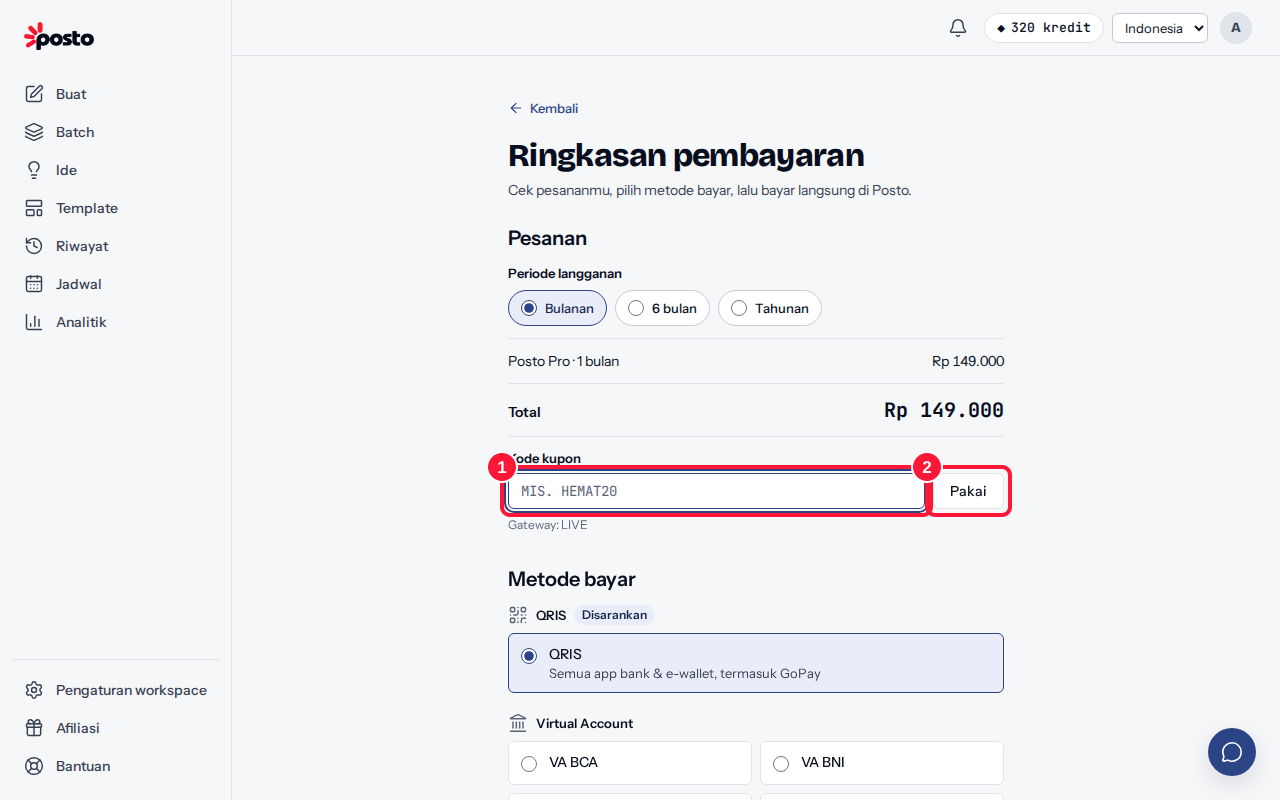
- In the Summary column of the Upgrade page, type the code in Coupon code.
- Click Apply. If the coupon is valid, you'll see "{CODE} · applied · you save {amount}" (or "+{n} bonus AI credits" for an AI credit coupon) and the total under Order updates right away.
- Continue to payment as usual.
Got a link with a coupon? The code is already filled in on the Payment summary page. To remove a coupon, click Remove.
Coupon types
- Percentage or fixed rupiah amount off the subtotal.
- Bonus AI credits: no price discount; extra AI credits are added once the invoice is paid.
Coupon rejected?
The message under the field explains why, e.g. the code has a typo, it has expired, its quota has run out, it only works for certain plans or periods, it's only for first purchases, or the minimum spend hasn't been reached. Some coupons can't be combined with long-period discounts — choose the 1-month period to use them.
Coupons only apply to purchases; renewal invoices always use the regular price.
Still stuck? Contact [email protected].
Apakah artikel ini membantu?
Artikel terkait
Belum ketemu jawabannya?
Tim support siap membantu. Sebutkan judul carousel atau jam kejadian supaya kami cepat menemukannya.