
Create your first carousel
Terakhir diperbarui
Di artikel ini
Your first carousel can be ready in a few minutes. You can fill in your brand kit later — without one, your slides still look neat.
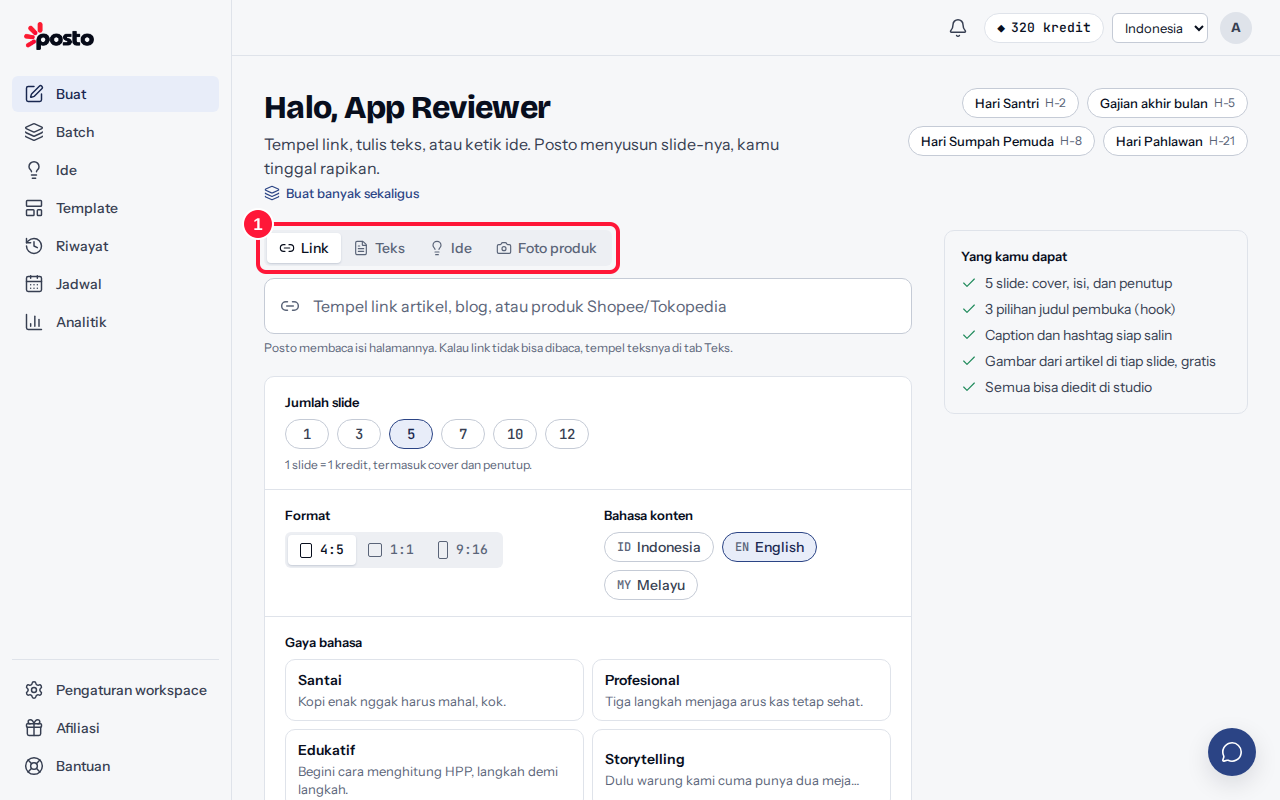
Quick steps
- Click + Create → AI carousel, then choose a content source: Link (an article or product page), Text (paste your own writing), Idea (type a short topic), or Product photo.
- Set the number of slides, ratio (4:5, 1:1, 9:16), language, and style, then click Create {n} slides. The AI credits it will use show on the button before you click it.
- When it's done, you land in the studio: edit text right on the slide, move blocks, or change the template, colors, or photos. Changes save automatically.
What's next?
- Download: a PNG per slide, a ZIP of all slides, or a PDF from the Download button in the studio.
- Schedule: connect your social accounts, then click Schedule in the studio. See Scheduling posts.
- All your carousels are saved in My content.
How many AI credits does it use?
AI credits are only used for AI actions. By default, creating a carousel uses 1 AI credit per slide, and each AI image uses extra AI credits (Standard 10, High 30). Rates can change, but the total always shows on the button before you click. Editing on your own, downloading, and posting use no AI credits. Full details in How AI credits work.
Still stuck? Contact [email protected].
Apakah artikel ini membantu?
Artikel terkait
Belum ketemu jawabannya?
Tim support siap membantu. Sebutkan judul carousel atau jam kejadian supaya kami cepat menemukannya.